For the past two years I have been using the Gaia GPS app on my iPhone for navigation and to record hikes and ultramarathons. I am neither a gadget nor app guy, but the utility of Gaia GPS is such that I felt compelled to write a review. Gaia GPS is the single most useful app for outdoor adventurers. (Disclaimer: I have no relationship with Gaia GPS other than as a customer).
What is Gaia GPS?
In a nutshell, Gaia GPS turns your phone into a GPS navigation unit that you can use without cell reception. If take your phone with you anyway on hikes and runs, as most of us do, it makes stand-alone GPS units obsolete and renders GPS watches unnecessary for many uses.
What is the cost?
While there is a free version, the basic $20 per year membership provides access to downloadable maps. This feature is key and is what allows for GPS navigation in the backcountry. The $40 premium membership provides additional specialty maps (backcountry skiiing, hunting, etc.), but I have found that the basic membership fits my needs perfectly. I have used the app on an iPhone 7 and iPhone SE.
Map Layers
The basic membership allows you to view either the Gaia Topo map, which is a simplified map, or a USGS Topo map. For sailors, the app also allows viewing on NOAA navigation maps. These maps are sufficient for everything I do. For those with additional needs, there are hundreds of other map layers to choose from.

Download Maps
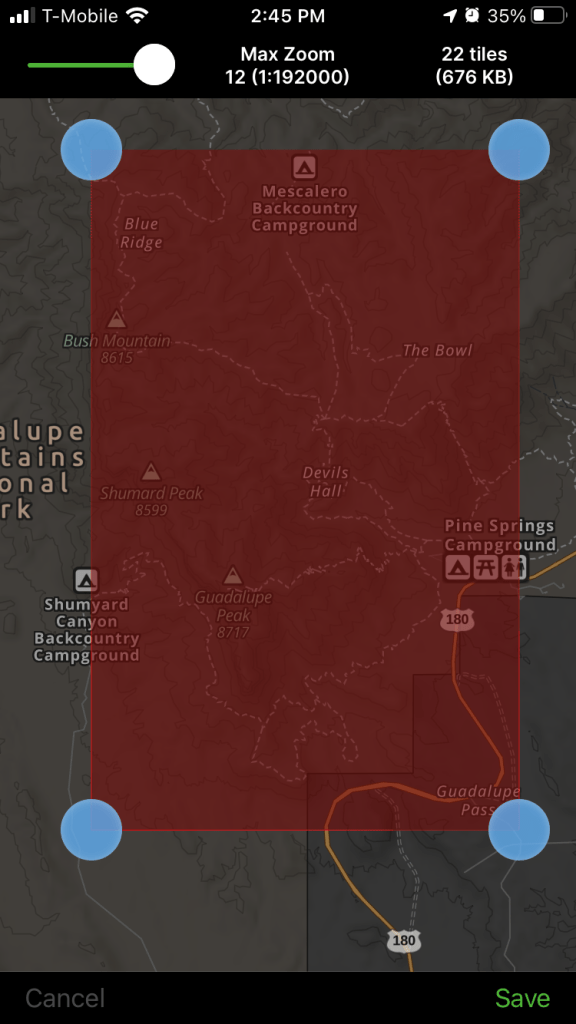
To download a map for off-network use, you simply open the app, click “+” and select “Download Maps.” A rectangle will appear on your screen and you can move the corners to select the area you need downloaded. You will then have an option to name the map and it is saved on your phone.
So, for example, if I were planning a trip to the Guadalupe Mountains, I would open the app, move the map to the Guadalupe Mountains, adjust the boundaries of the download area, and save the map:
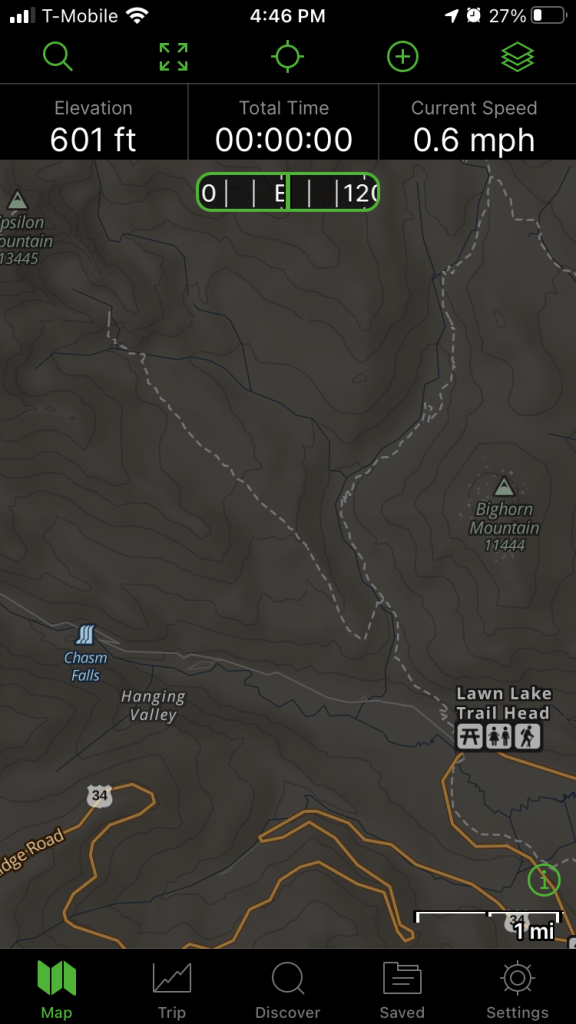
Even though the Guadalupes are miles from the nearest cell tower, once hiking I can open the Gaia GPS app and see my location moving on the downloaded topo map. The display also uses the phone’s compass to show you what way you are facing on the map. This makes it almost impossible to get lost.
Download Routes
In addition to downloading maps, you can save routes and waypoints for use when off-network. Routes can be created in the app directly by clicking “+” and selecting “Create Route” then clicking the points on the map. The app automatically connects points along a trail if the two points are on-trail.
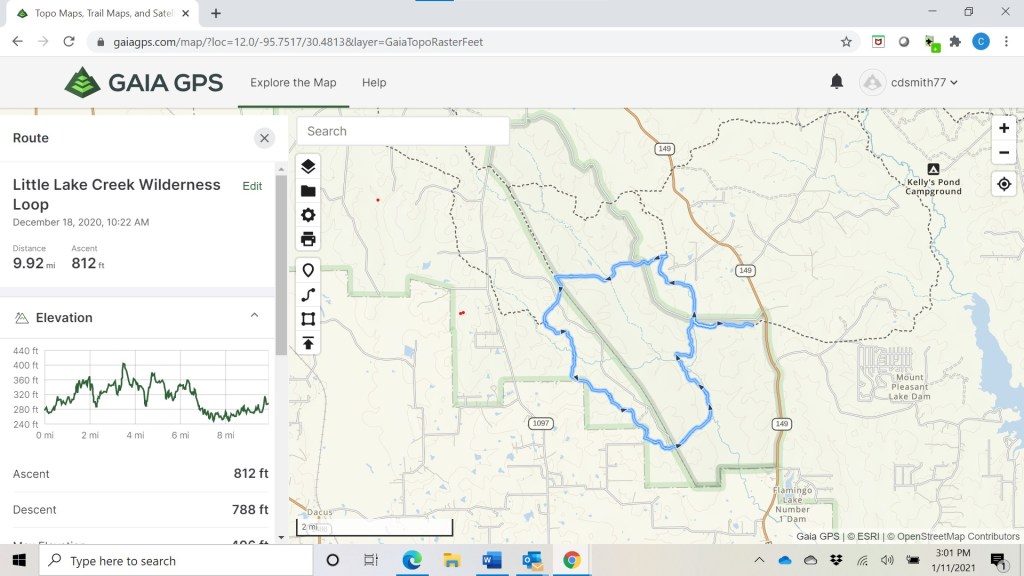
More often, I log in to the Gaia GPS website and create routes on my computer, which are then automatically uploaded to my phone. For example, here is a route I created for a trip to the Little Lake Creek Wilderness in East Texas. The route includes not only distance but an elevation profile:
Here is what it looks like on my phone using the Gaia Topo base map:
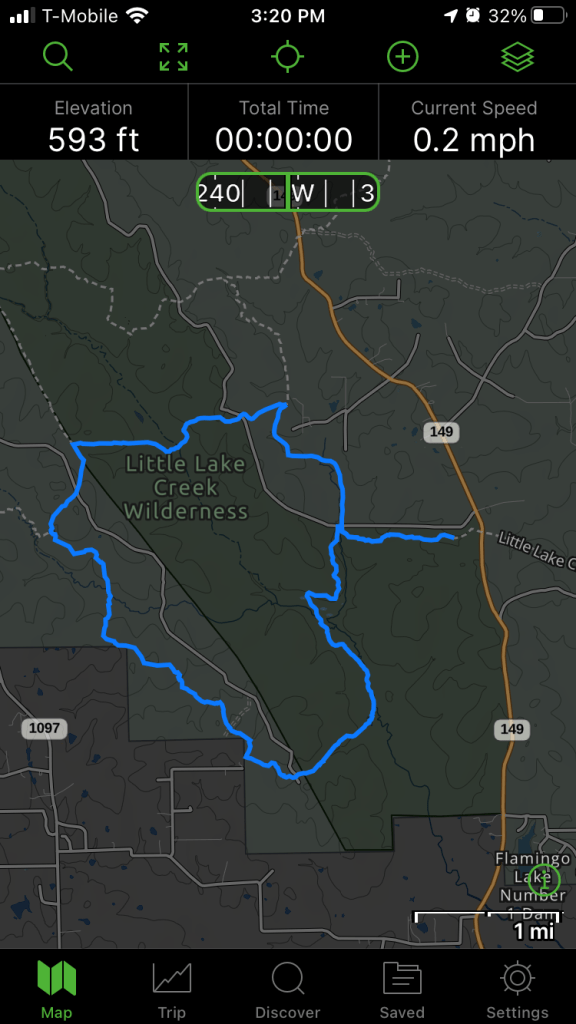
Or the USGS Topo base map:

Once I am out on the hike, my location will be a visible as an arrow moving on the map.
In addition to creating maps, you can also import routes as GPX files. Many races provide GPX files of the course which can be downloaded from the race website. For instance, when I ran the Run Rabbit Run 100 in 2019, I pre-downloaded the GPX file from the race website into Gaia GPS on my phone so I was always able to confirm that I was on-course.
Download and Create Waypoints
Like saving routes, the app makes it easy to save waypoints, including photographs for documenting a route.

For a Cub Scout orienteering event, I planted flags on the Barton Creek Greenbelt for the scouts to find using traditional map and compass methods. Here is what that looked like on my phone:
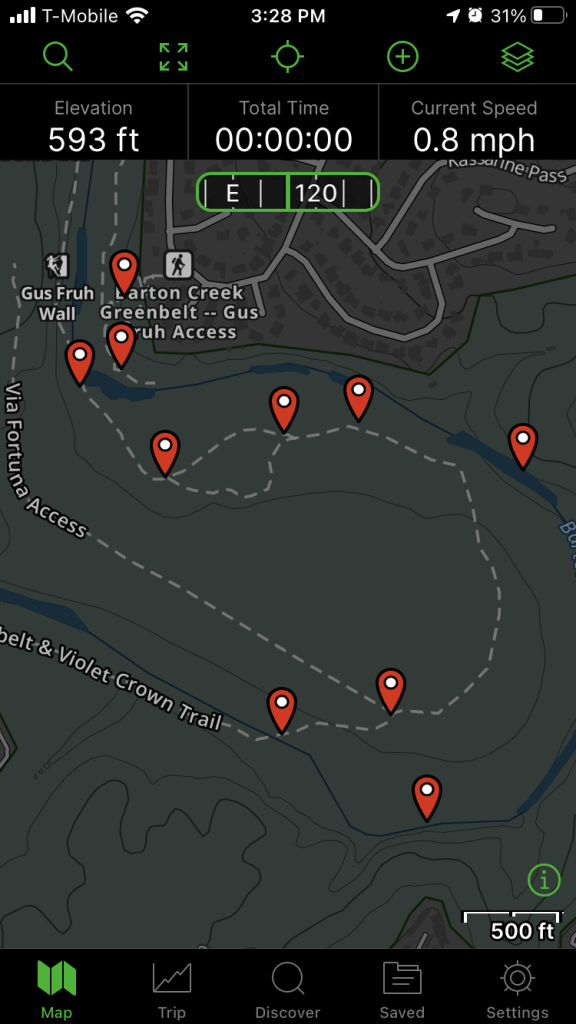
When I got home, I logged into Gaia GPS and created printable maps for the scouts:

Recording Races and Hikes
To record a track, I just open the app, select “+” and “Record Track” and the app starts recording. Importantly, it runs in the background and uses very little battery life. For example, when I ran the Bandera 100k, Gaia GPS recorded for over 15 hours. My phone was on airplane and battery saver modes during the event and went from 99% charged to 65% charged.

I am confident the app can record most ultramarathons with high accuracy on a single battery charge. Once recorded, tracks can be exported as GPX files to fitness platforms like Strava or as KML files to Google Earth.
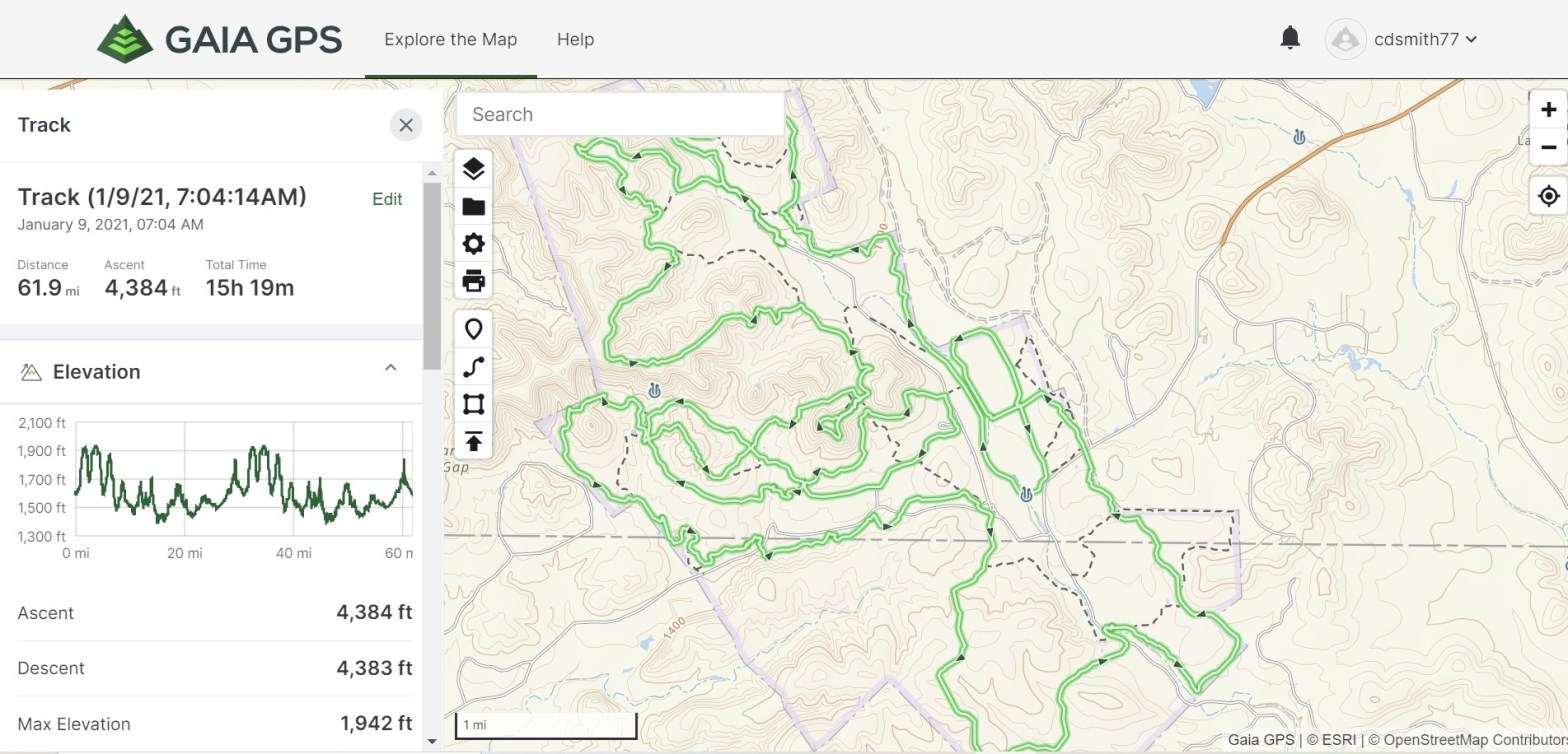
One thing I have observed is that the vertical ascent and descent calculation in the Gaia GPS app is sometimes lower than other apps, particularly on rough courses. For example, the Gaia GPS app shows my Bandera 100k track with 4,383 feet of ascent. When I exported the GPX file to Strava, Strava shows 6,469 feet of ascent. This is because the algorithm Gaia GPS uses “smooths” the small vertical bumps compared to other algorithms. In any event, it does not affect the utility of the app for navigating or recording tracks because it exports the full GPX file to other apps (which then adjust the vertical data per their own algorithms).
GPS Watch v GPS Phone App?
While I am a big fan of Gaia GPS, I still prefer a GPS watch for some situations – mainly when I need to know my pace in the middle of the event, e.g., tempo runs and races up to marathon distance. For ultramarathons and backpacking trips, I primarily need to know where I am, the elapsed time and, in the mountains, altitude (which is best with a barometric altimeter). I almost never need to know my pace beyond ballpark calculations and most watches don’t have the battery life to provide accurate GPS distance and elevation measurements for most ultramarathons, particularly for a mid-pack competitor like me who is going to be out on the course for a while. Even if there was an affordable GPS watch with a barometric altimeter and with a battery life to accurately record a GPS track for 40+ hours, I would still carry my phone with me anyway for photos and music and would use Gaia GPS for navigating with a big bright phone screen.
Bottom Line
For those of us who spend significant time in areas without cell coverage, having a reliable navigation tool is a matter of safety. For actual functionality and aside from short distance (marathon or less) fast-paced running, its hard to beat this $20 phone app for GPS functions.
 Vamonos Baby!
I have been a Gaia GPS user since the app was first launched (using it for wildland fire fighting) and continue to use it to this day (for hiking and boondocking). While the app still has utility, each update and upgrade has made it more difficult to use, bloated and buggy. Downloading maps has always been a major downfall and is even worse now – often requiring multiple restarts of the app over extended periods of time. I just downloaded a map, checked it was fully cached (when offline), went to download another map and the first one started redownloading, thus slowing the second map download. It’s taken all morning for 4 maps (about 1.5 GB) to download on a 5G system clocked at around 120 mbps (no VPN – Gaia slows download speeds). If you switch to another app and come back to Gaia the map position you had been viewing will have changed to a seemingly random location and you’ll need to relocate it. The status bar in recent versions takes up 1/8 of the screen. The original version took up less than half of that. The map list on the web map has never been sorted and still contains maps that are no longer available. The app cannot search for DMS coordinates – only decimals. I’ve never been able to get the compass reading to read correct bearing. When plotting routes the route paths sometimes do not conform to roads and trails. Bottom line: if you are a hard core, outdoor map user it may be worth investing money in but beware – you will also be increasingly investing time getting the app to function like it used to and like it should. Also, they just increased the pro price despite the app working less well compared with previous versions. TrailBehind (developer): If you’re reading this: stop monkeying with the app, fix its faults (including the web map) and also bring back the old online user discussion and suggestion space!
LikeLike
I agree that GaiaGPS has become less useful since I wrote this post. Outside bought GaiaGPS in Feb. 2021, which likely has affected the app development and shifted the target audience. Interestingly, in the last year I have gone back to using CalTopo, which I used to use in the 2010s for creating paper maps on a desktop. CalTopo desktop is far superior to GaiaGPS desktop, but CalTopo historically lacked the phone app functionality of GaiaGPS. The CalTopo app has greatly improved in recent years and has some advantages over GaiaGPS for advanced users. I will try and do a write up of CalTopo soon.
LikeLike